Country and State Values in Bullhorn ATS
Bullhorn ATS uses standardized country and state values across records and custom fields. This article explains where those values come from and where they appear in Bullhorn.
Where Bullhorn's Country and State Lists Come From
Bullhorn's country and state lists are based on the ISO 3166 standard, the internationally recognized framework for country and subdivision codes. Bullhorn pulls its lists from ISO’s standard list, which is the official source of truth for ISO 3166 data. This means Bullhorn's country and state values are reflect the international standard.
The subdivisions listed vary by country and may include states, provinces, regions, or territories. The app displays standard, non-localized names only. Any localized names already updated in our database will be retained.
Where Countries and States are Used in Bullhorn
Country and state values appear in two places in Bullhorn ATS: the standard address fields on records, and custom fields configured with a country or state edit type.
Standard Address Fields
The built-in Country and State address fields on companies, contacts, candidates, jobs, and other record types are populated from Bullhorn's country and state lists. These fields use standardized values, which means records can be reliably searched and filtered by location.
For example, if you want to find all candidates located in a specific state, you can run a search or filter a list view on the State field to return matching records.
For Admins: You can change the edit type for the built-in Country and State address fields via Field Mappings, or create custom country and state fields. The available edit types are listed in the table below.
For setup instructions, see Adding a Country Field and Adding a State Drop Down or Picker.
Edit Types for Country and State Fields
| Edit Type | Description |
|---|---|
|
Country – Drop Down |
A dropdown field from which users select a single country from Bullhorn's full country list. |
|
Country – Mini Picker |
A compact picker from which users can search or browse for one or more countries from Bullhorn's full country list. |
|
Picker:Text:State |
A picker containing states and regions from every country, not just the US and Canada. Users can filter the list by country. The database stores the full state name rather than an abbreviation. Supports multiple selections. |
|
State – Drop Down |
A dropdown field from which users select a single state or province. Covers US and Canadian states and provinces only. |
|
State – Mini Picker |
A compact picker from which users can search or browse for a state or province. Covers US and Canadian states and provinces only. |
|
Picker:State ID |
A picker that displays the full state name within the ATS user interface while saving the corresponding state ID via API calls. It dynamically filters the selectable options based on the country chosen for the record. For instance, selecting Massachusetts displays "Massachusetts" inside the ATS, but an API data query retrieves its alphanumeric identifier. |
Use Picker:Text:State for any custom state field where you need to capture states or regions outside the US and Canada. It provides the broadest coverage, stores the full state name, and supports filtering by country.
How State Fields Work with the Bullhorn Parser
When a candidate is parsed into Bullhorn, the value stored in the state field depends on the edit type configured for that field in Field Mappings:
-
If the edit type is set to Picker:Text:State, the full state name is stored (for example, California).
-
For US and Canada Provinces: If the edit type is set to State – Drop Down or State – Mini Picker, the state abbreviation is stored (for example, CA).
You can update the field edit type to control how the state value is stored going forward. Changing the edit type only affects candidates parsed after the change is made. Existing records are not updated.
If you are on ATS Growth (formerly Team Edition) or ATS Starter, contact Bullhorn Support to update this setting.
How to Update the State Field Edit Type
-
Go to Menu > Admin > Field Mappings and expand the Candidate entity.
-
Find the state field and click the blue hyperlinked text to open the edit screen.
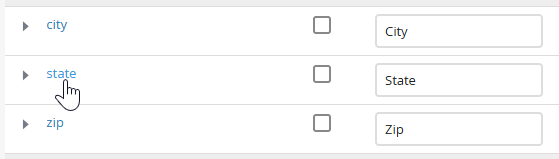
-
Expand the Edit Type dropdown and select the new edit type you want to use.
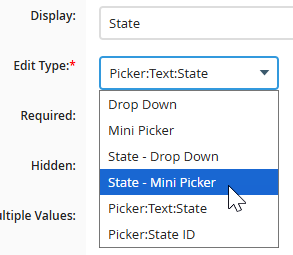
-
Click Save.
You may need to log out and log back in before seeing your changes take effect.