Adding a Date or Time Field
Date and time fields let you capture important timeline details that aren’t already included in Bullhorn’s standard fields. These are especially useful when you need to track key dates, reminders, or scheduling information unique to your workflows.
If you want to learn more about the custom field types available, see About Custom Fields.
Common Use Cases
Recruitment teams often add custom date or time fields to track:
-
Anniversary or milestone dates, such as start dates or contract renewal dates.
-
Scheduling details, like interview times, availability windows, or follow-up reminders.
How to Add a Date or Time Field
-
From the Bullhorn Menu, select Admin > Field Mappings.
-
Expand the entity where you want to add the field.
-
In the Field column, type "customDate" and press Enter.
-
Select an unused customDate field from the list.
-
Date and time fields should be created using an available customDate field.
-
-
In the pop-up window, complete the field settings:
Field
Description
Display The label users will see inside Bullhorn.
Edit type
Choose one of the following:
-
Date – Select a calendar date.
-
Date/Time – Select a date with a specific time.
-
Time – Select a time only.
Required Selecting this option will make the field mandatory when saving the record.
Hidden Selecting this option will hide the field from the record layout.
Allow Multiple Values Enable this if you want users to store more than one value.
Some field types do not support multiple values.
Sort Order
Enter the number that determines where this field appears on the Edit screen.
Sort orders must be unique.
Leave spacing between fields (for example, 130, 135) so you can easily add more fields in between them later.
Value List
Leave blank. Date and time fields allow user selection and do not rely on predefined values.
Display List
Leave blank. Date and time fields do not use display values.
Default Value Leave blank unless you want a specific date or time to appear automatically.
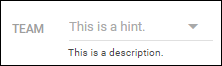
Description
Optional; A short explanation that appears under the field to help users understand its purpose.
Hint Optional; helper text that appears inside the field in grey.
Field Interaction
Optional; Add a field interaction if you want this field to trigger conditional behaviors.
-
-
Click Save.
-
You may need to refresh your Bullhorn session to see the changes.
-