Troubleshooting
This article covers common issues and their resolutions for .
GDPR Header Icon Disappearing
Issue
The GDPR/Data Privacy icon disappears from the Header of a Person record.
Resolution
The Header of all records responds to the size of the window, which is influenced by the screen resolution on your PC. Our recommended specification can be seen here, but we suggest HD resolution (1080p) to get the best experience on . We have revised the header to account for smaller screen resolutions to give more priority to the Data Privacy icon than other fields.
Invenias Not Loading After an Update
Issue
When a new update is released, your antivirus can falsely flag some of the files as malicious and place them into quarantine. This is largely outside the control of ; we are actively working with antivirus companies to ensure that our files are whitelisted where possible.
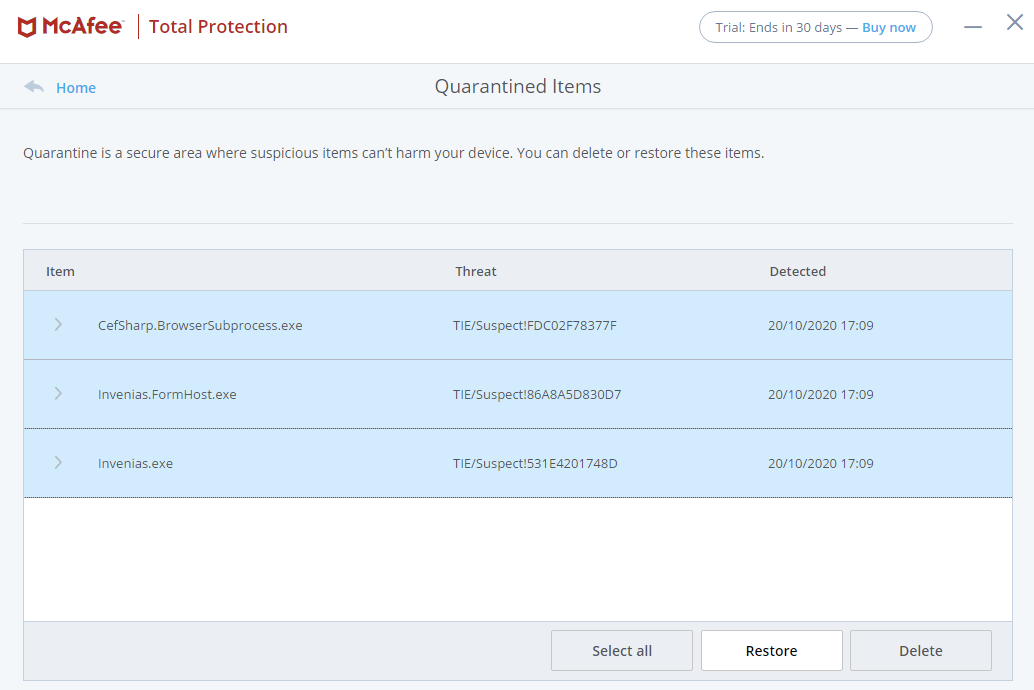
Specifically, the following three files may be blocked:
- CefSharp.BrowserSubprocess.exe
- Invenias.exe
- Invenias.FormHost.exe
Resolution
Restore the missing files from the antivirus quarantine. This will allow to launch the next time Outlook is restarted.
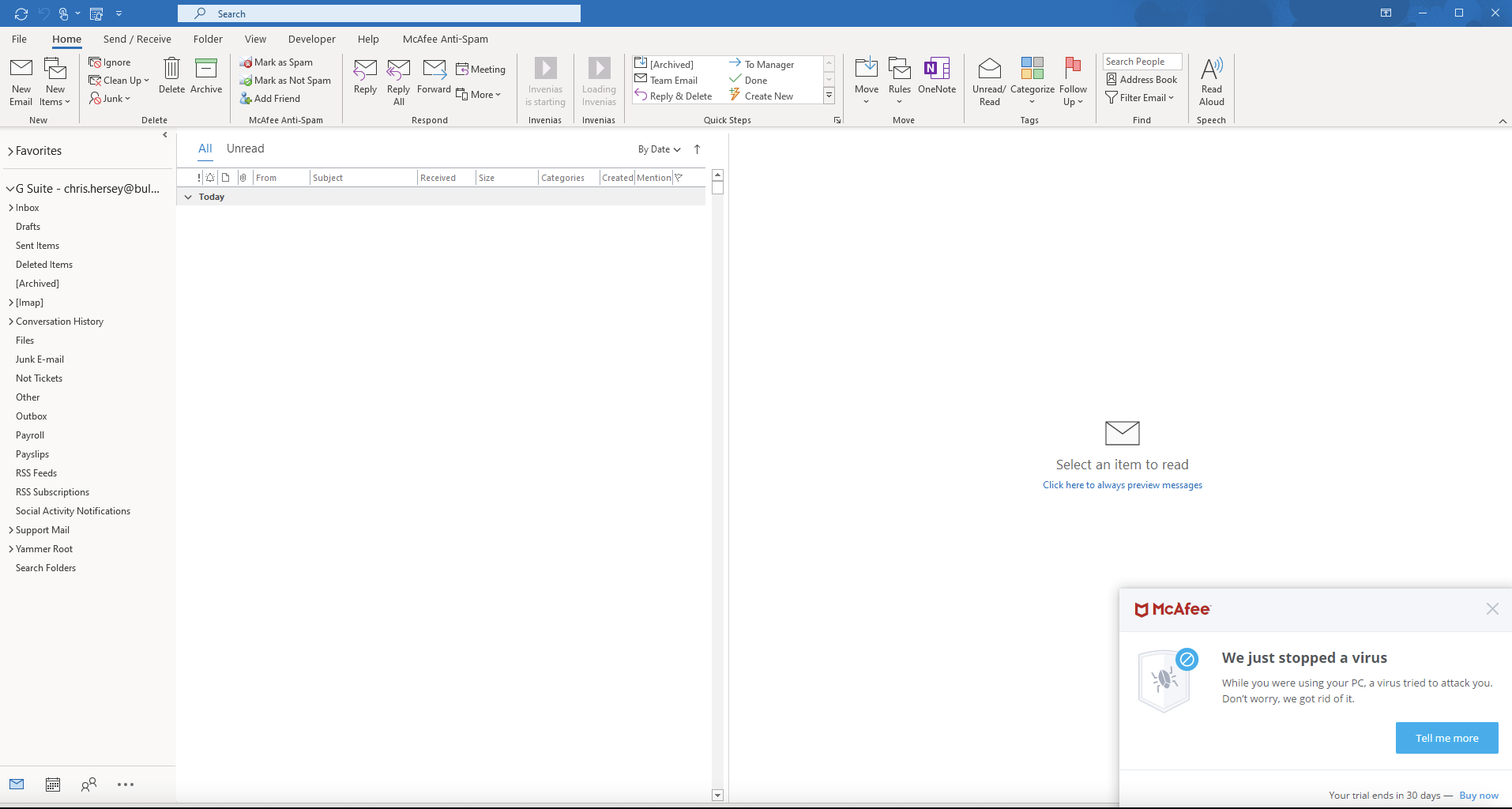
Follow these steps when launches in Outlook and the antivirus window opens in the bottom right stating that a virus has been blocked:
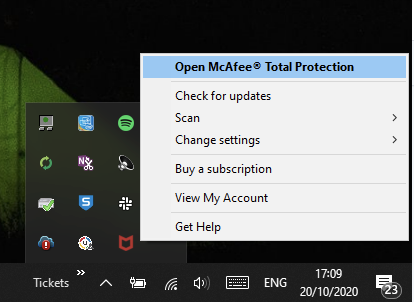
1. Open the System Tray by clicking the arrow in the bottom right of your desktop. Right-click the antivirus icon and select the open option.
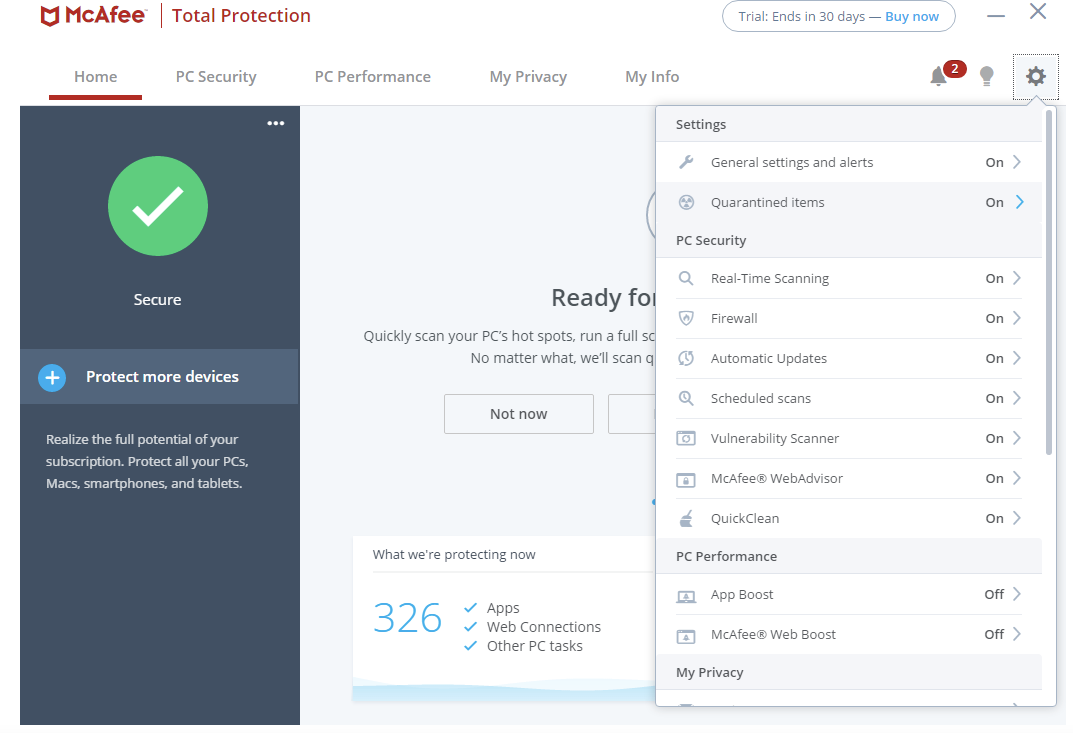
2. Once open, click the Cog in the top right and select Quarantined Items.
3. Scroll down in the quarantine list to find the three .exe files listed above. Highlight them and click Restore.
4. Restart Outlook. will launch without any problems.
Note: this will generally only occur when a new update is released, as a new folder is created for the update and the antivirus may block it again.
If you have any further issues with antivirus and , please contact your Account Manager or support at inveniassupport@bullhorn.com.
Installation Errors
Issue
fails to load or encounters errors after installation.
Resolution
Most installation errors can be resolved by repairing one or more of the following: your Invenias installation, your Office installation, or Microsoft components (.NET Framework, Visual Studio Tools). Corruption in your Outlook PST/OST files can also cause instability.
For full step-by-step instructions, see Advanced Installation Troubleshooting.