Amplify Dashboards: Screen Tab
The Screen tab of the Bullhorn Analytics prebuilt Amplify Impact & Adoption Dashboards shows how your team is using Amplify Screen. Use it to track how many Candidates are invited, start and complete Screens, see how well they score, follow up with high-scoring Candidates, and see how Screens relate to submissions and placements.
This dashboard is only available to Bullhorn Amplify customers.
For definitions of each metric used in this dashboard, see Amplify Screen Metrics Dictionary.
Accessing the Dashboards
-
Log in to Bullhorn Analytics.
-
Select the Dashboards module at the top of the screen.
-
Select
 Open in the sidebar to view available dashboards.
 -
Select Amplify Impact & Adoption Dashboards.
-
Select the tab you want to view.
Dashboard Toolbar
The dashboard toolbar contains options for filtering and refreshing data:
- Refresh: Select the circular arrow icon
 in the top right to update all panels with the most current data from your Bullhorn system.
 - Filter: Select the filter icon
 to display or hide the dashboard top-level filters.
Top-Level Filters
All panels use inherited dashboard settings. The following filters apply across every tab.
Company View Filter
The company view filter controls whose data the dashboard displays by default. Select Logged in User to view your own data. If you save the dashboard with this filter active, it becomes your default view each time you open it. Select Logged in User's Group to view your team's data. This shows data for all users in your group.
Timeframe Filter
Use the date picker to select a timeframe or choose a custom date range. Every panel on the dashboard uses the selected timeframe. The default for this dashboard is Last 30 Days.
Client Filter
Use the Filter by Client dropdown to search for or select a specific client.
Dashboard Panels
Screen Deployment
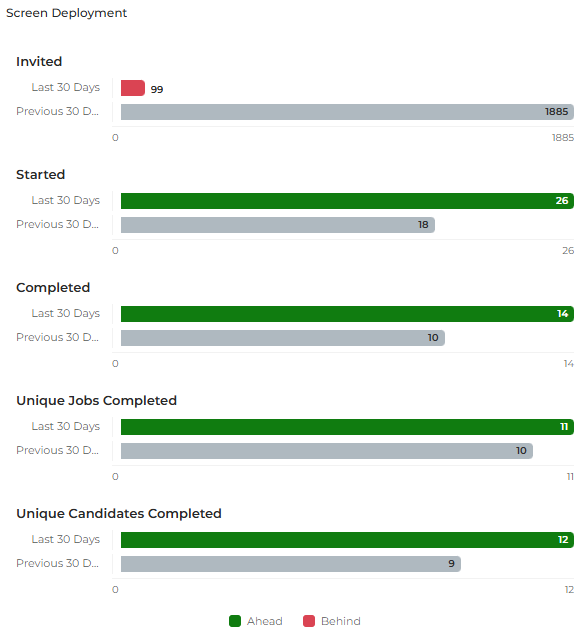
An Impact Comparison Panel that uses a bar chart to compare Screen activity in the selected timeframe against the previous period across five measures. Each measure shows the current period against the prior period. Use this panel to see whether Screen usage is growing. Higher values are better for all five measures.
Clicking anywhere on this panel opens a grouped view of all the panel's metrics, organized by category with a percentage change badge shown for each group. See Impact Comparison Panel Clickthrough Navigation for details.
Each section corresponds to the following metric:
- Invited: A Period vs Prior Period comparison for Screen: Invited.
- Started: A Period vs Prior Period comparison for Screen: Started.
- Completed: A Period vs Prior Period comparison for Screen: Completed.
- Unique Jobs Completed: A Period vs Prior Period comparison for Screen: Unique Jobs Completed.
- Unique Candidates Completed: A Period vs Prior Period comparison for Screen: Unique Candidates Completed.
Top Users: Jobs with Completed Screens (Job Owner)
A Leaderboard Panel that ranks users by the number of unique Jobs they own that have at least 1 completed Screen, in descending order. Screens are completed by Candidates, so users are credited as the owner of the Job. Use this panel to identify the users whose Jobs most often have completed Screens. Ranked by: Screen: Unique Jobs Completed.
Non-Adopters: Jobs with Completed Screens (Job Owner)
A Leaderboard Panel that ranks users by the number of unique Jobs they own that have at least 1 completed Screen, in ascending order, so the users with the fewest appear first. These are not necessarily users with no activity. Use this panel to identify the users whose Jobs least often have completed Screens. Ranked by: Screen: Unique Jobs Completed.
Reach out to the users at the top of this list to find out whether they need training or support to use Screen.
Screen: Placement Impact
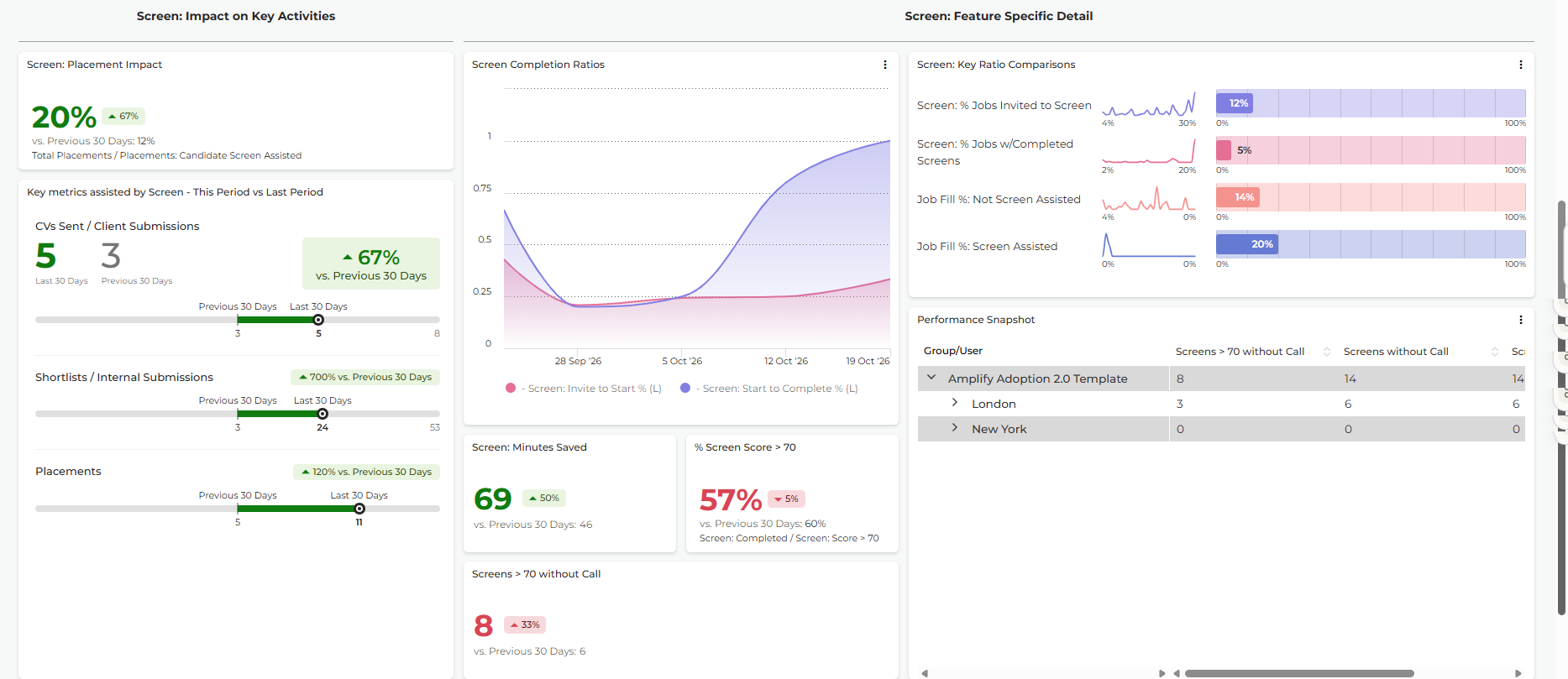
A Ratio Panel that shows the percentage of total placements in the selected timeframe where the Candidate completed a Screen in the prior 6 months, compared against the previous period. A higher percentage is better. Use this panel to see how much of your placement activity Screen is involved in. The panel displays the ratio Screen Impact.
For the ratio definition, see the Ratios section of the Amplify Screen Metrics Dictionary.
Key Metrics Assisted by Screen: This Period vs Last Period
An Impact Comparison Panel that uses comparison bars to compare the submissions and placements assisted by Screen in the selected timeframe against the previous period. Higher values are better for all three measures. Use this panel to see whether Screen is helping to drive submissions and placements.
Clicking anywhere on this panel opens a grouped view of all the panel's metrics, organized by category with a percentage change badge shown for each group. See Impact Comparison Panel Clickthrough Navigation for details.
The panel tracks the following measures:
- CVs Sent / Client Submissions: A Period vs Prior Period comparison for CVs / Client Subs: Candidate Screen Assisted.
- Shortlists / Internal Submissions: A Period vs Prior Period comparison for Internal Subs: Candidate Screen Assisted.
- Placements: A Period vs Prior Period comparison for Placements: Candidate Screen Assisted.
Screen Completion Ratios
A Trend Chart that plots two ratios weekly across the selected timeframe, with a gradient fill: Screen: Invite to Start % and Screen: Start to Complete %. Together they show where Candidates drop out of the Screen process. Use this panel to see whether Candidates are starting and finishing the Screens they are invited to.
A low Invite to Start % means Candidates are not starting the Screen, so consider sending reminders. A low Start to Complete % means Candidates are starting but not finishing, so consider the length and quality of the Screen questions.
For the ratio definition, see the Ratios section of the Amplify Screen Metrics Dictionary.
Screen: Key Ratio Comparisons
A Ratio Comparison Panel that shows four ratios, each with a trend line and a bar on a 0 to 100% scale. The first two show how many of your Jobs are being invited to screen and have completed Screens. The last two compare how often Jobs with and without a completed Screen go on to be placed. Use this panel to see whether Jobs with completed Screens are filled more often. The panel displays the following ratios:
- Screen: % Jobs Invited to Screen
- Screen: % Jobs w/Completed Screens
- Job Fill %: Not Screen Assisted
- Job Fill %: Screen Assisted
For the ratio definition, see the Ratios section of the Amplify Screen Metrics Dictionary.
Screen: Minutes Saved
A Metric Panel that shows the total duration of all started and completed Screens in the selected timeframe, compared against the previous period. A higher number is better. Use this panel to see the total time Candidates have spent in Screens. The panel shows the metric Screen: Minutes Saved.
% Screen Score > 70
A Ratio Panel that shows the percentage of completed Screens where the Candidate scored 70 or higher, compared against the previous period. A higher percentage is better. Use this panel to see how many Candidates are strong prospects, because, based on Bullhorn's analysis, Candidates who score over 70 have a much higher chance of being placed. The panel displays the ratio % Screen Score > 70.
For the ratio definition, see the Ratios section of the Amplify Screen Metrics Dictionary.
Screens > 70 without Call
A Metric Panel that shows the number of completed Screens in the selected timeframe where the Candidate scored 70 or higher and no Candidate Call was logged in the 3 months after, compared against the previous period. A lower number is better. Use this panel to find high-scoring Candidates who have not yet been followed up. The panel shows the metric Screens > 70 without Call.
Follow up with these Candidates promptly. Their Screen scores suggest they are likely to be placed.
Performance Snapshot: Completed Screens and Follow-Up
A Performance Snapshot Grid that shows completed Screens and Screens without a Candidate Call by group and user. Expand a group to see the users within it. Use this panel to see which teams and individuals have Screens that still need follow-up. The grid shows the following metrics:
- Screens > 70 without Call
- Screens without Call
- Screen: Completed
Performance Snapshot: All Key Metrics
A Performance Snapshot Grid that shows the key Screen metrics and ratios by group and user. Expand a group to see the users within it. Scroll across to see all columns. Use this panel to compare Screen adoption across teams and individuals. The grid shows the following metrics and ratios:
- Screen: Invited
- Screen: Started
- Screen: Completed
- Screen: Avg Experience Rating
- Internal Subs: Candidate Screen Assisted
- CVs / Client Subs: Candidate Screen Assisted
- Placements: Candidate Screen Assisted
- Screen: Invite to Start % (ratio)
- Screen: Start to Complete % (ratio)
- Screen Impact (ratio)