BTE Timesheets Overview
A timesheet in the Time Management Console (TMC) is the record of an employee's time entries for a given pay period. Timesheets are generated automatically for each active placement and move through a workflow from submission to approval before being processed for pay and bill. This article provides an overview of the key sections and actions available on an individual timesheet in the TMC.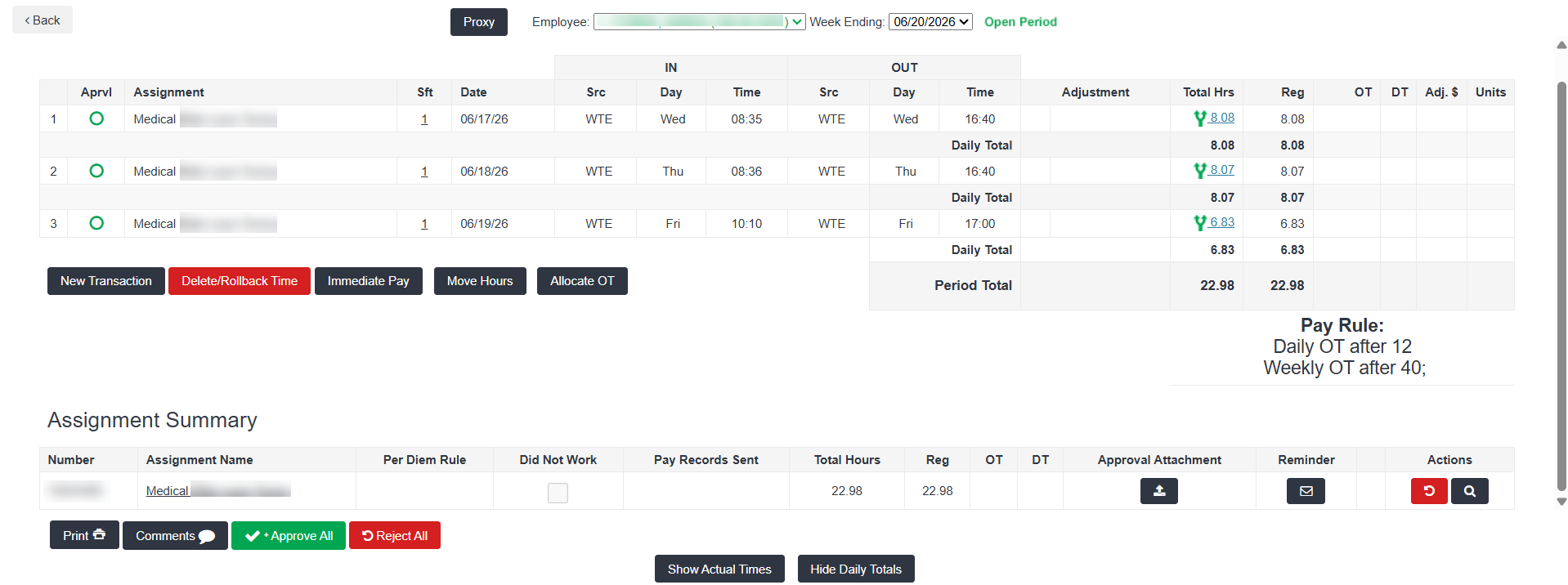
Timesheet Statuses
Every timesheet in the TMC has a status that reflects where it is in the approval workflow. These statuses show up in list screens, not individual timesheets:
-
Unsubmitted: The timesheet has not yet been submitted by the employee. Time entries can still be added or changed.
-
Submitted: The employee has submitted the timesheet for approval, but it has not yet been approved. The employee can modify and resubmit while it is in this status.
-
Approved: The timesheet has been approved and is ready for payroll processing.
-
Did Not Work: Indicates the employee did not work during the pay period and will not be submitting hours.
If a client approver disputes specific transaction lines during the approval process, those lines will display a Disputed status. The overall timesheet remains in Submitted status until the dispute is resolved. See Unapproved Time Tab for more information on processing disputes.
Sections of a Timesheet
Navigating to an individual timesheet from the Employee List in the TMC displays the following key sections:
Transactions
The main body of the timesheet displays the individual time entry rows, also called transactions. Each row represents a block of time entered by the employee or an administrator, and includes the following information:
-
Aprvl (Approval): Shows the approval status for each individual row. An empty green circle indicates the row is unapproved. A green check mark indicates the row has been approved.
-
Assignment: The assignment name that the employee is logging time against.
-
Sft (shift): If shifts are set up, this is the shift number the hours correlate to.
-
Date: The date the work occurred.
-
Src (Source): Indicates who entered or modified the transaction. WTE (Web Time Entry) or an administrator's initials appear here, providing an audit trail for any adjustments.
-
In/Out Times or Quantity: The clock-in and clock-out times (for In/Out timesheets) or the total number of hours entered (for hours-only timesheets). Quantity is expressed in decimal format — for example, 1.50 represents one hour and thirty minutes.
-
Adjustment: The code categorizing the type of time or dollars, such as WORKED, BREAK, OT (overtime), DT (double time), or other configured codes. See Understanding Adjustment Codes for more information.
-
Total Hrs: Total hours worked per line.
-
Reg: Amount of hours per line against the Reg Adjustment Code.
-
OT: Amount of hours per line against the OT (overtime) Adjustment Code.
-
DT: Amount of hours per line against the DT (doubletime) Adjustment Code.
-
Adj. $: Any adjusted dollar amounts belonging to this transaction line.
-
Units: Any units belonging to this transaction line. This is tied to Units Adjustment Codes.
Assignment Summary
The Assignment Summary appears at the bottom of the timesheet and displays identifying information for the placement, including the assignment name and number, total hours, and more. Clicking the Assignment Name link in this section opens the timesheet history, which shows a chronological log of actions taken on the timesheet, such as Timesheet Submitted, Timesheet Approved, and Timesheet Rejected.
The Assignment Summary displays a summary of total hours by adjustment code for the pay period. This provides a quick view of regular hours, overtime, and any other tracked hour or dollar types.
Actions on a Timesheet
The following actions are available from an individual timesheet in the TMC. Availability of each action depends on the timesheet's current status and the user's role permissions.
New Transaction
The New Transaction button allows administrators to add or adjust time entries directly on the timesheet. The following options are available:
-
Add Hours: Adds or subtracts hours from the timesheet using decimal format. This option is also used to record breaks by entering a negative value.
-
Add Punches: Adds In and Out time entries in military format. Use this option for In/Out timesheets or to add worked segments.
-
Add Dollars: Adds a dollar-value adjustment, such as a bonus or per diem, using a Dollars-type adjustment code.
Transactions added by an administrator are shown as adjustments on the timesheet, with the administrator's initials appearing in the Src column. See New Transaction for full details.
Approve
Time can be approved at the individual row level or all at once:
-
To approve a single row, select the green circle in the Aprvl column next to that row.
-
To approve all rows at once, select Approve All and confirm in the pop-up.
Approved rows are marked with a green check mark. See Approve from an Individual Time Card for more information.
Reject
If time entries are incorrect, an approver can reject individual rows on the timesheet. Clicking the Reject icon on a row opens a comment field where the reason for rejection must be entered. The timesheet is then returned to the submitter to correct and resubmit. The submitter receives an email notification, and the rejection is recorded in the timesheet's Comments history. See Rejecting Timesheets for more information.
You can also reject the full timesheet by clicking the Reject All button at the bottom of the page.
View/Print
The View/Print option generates a printable version of the timesheet, showing all transaction rows and totals for the pay period.
Comments
The Comments button at the bottom of the timesheet opens a pop-up displaying the full audit trail for the timesheet. This includes rejection history from approvers, employee actions such as re-opening or resubmitting time, and any notes added by administrators or approvers. See Timesheet Comments in BTE for more information.